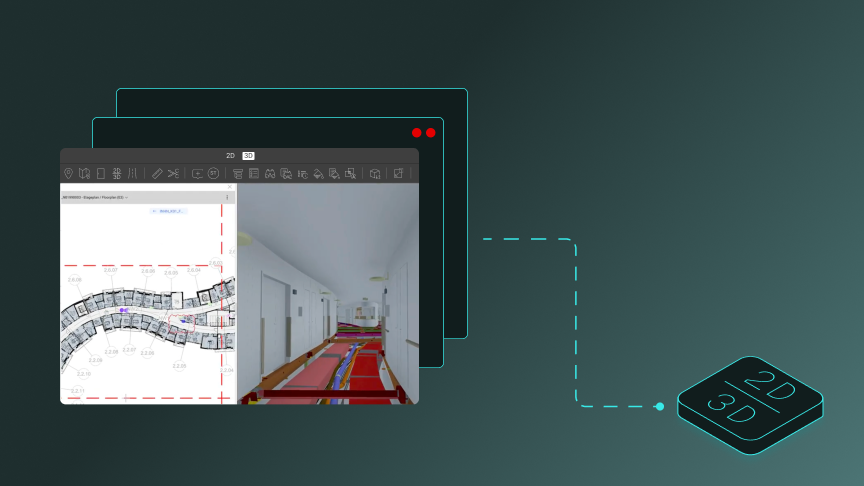
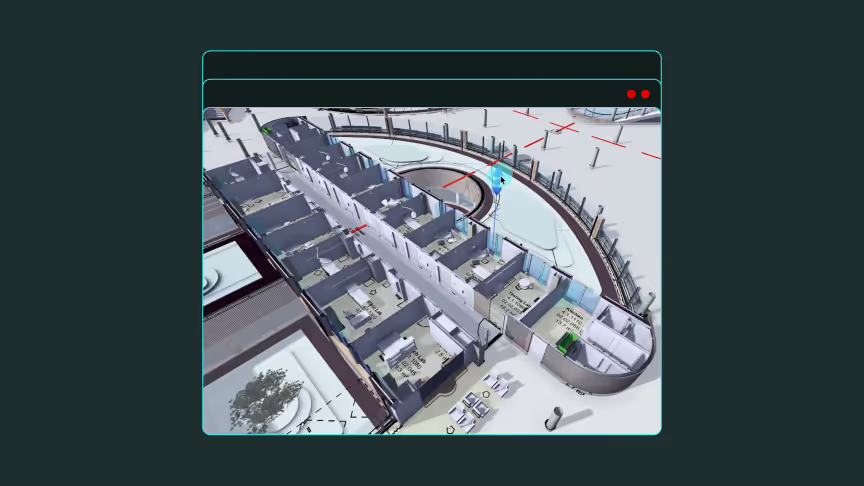
How to overlay PDFs and SharePoint drawings on a 3D model in Revizto
See how Revizto fits your workflow
Overlays don't depend on sheets coming straight from Revit. By publishing sheet coordinates first, teams can attach PDFs, or drawings stored in a connected CDE such as SharePoint, and still overlay them on the 3D model. This article covers the workflow step by step, what to know before importing, and what to check if an overlay is misaligned.
Quick takeaway: Publish sheet coordinates only from Revit, then import your PDF or send the drawing from a connected CDE to 2D. Revizto matches the drawing to the coordinates, so it works as a normal sheet with an overlay.
What does "publish sheet coordinates only" do?
When publishing from Revit, you can choose to publish sheet coordinates only. This sends positional data without the sheet itself. In Revizto, the sheet appears with a different icon from a standard sheet, and opening it shows a warning that it's currently empty. It's a placeholder that holds the position the overlay needs.
This is useful when the drawings you want to use are PDFs, or when they live in a connected CDE. Revizto's Help Center notes that issue data and 3D overlays are maintained between sheet versions when sheets are exported with sheet coordinates from your authoring software.
How do you overlay a PDF?
- In Revit, publish the sheet coordinates only for sheets that aren't yet in the project.
- In Revizto, go to 2D, open the destination folder, and click Import (or use Import file inside an open sheet).
- Select your PDFs. Revizto recognizes that the sheet coordinates match the PDF and pairs them.
- Review the sheet mapping options and click Done.
The overlay then works as it would for a sheet published directly from Revit.
How do you overlay a drawing from SharePoint or another CDE?
If your Revizto project is connected to a CDE such as SharePoint:
- Click Docs and open the folder containing your drawings.
- Click Send to 2D, select the drawings, and click Done.
- Review the sheet mapping options and click Done.
Revizto matches the drawings to the published coordinates, and you can overlay them like any other sheet. CDE-connected sheets update automatically, unless you detach them.
What should I know before importing?
- Revizto treats each page of a PDF as a sheet.
- From a CDE, only single-page PDFs can be imported. Revizto reads only the first page, including when updating.
- When importing from the sheet viewer to link an existing sheet, only the first page is imported.
- Revizto parses file names or page labels to generate sheet numbers, names, and revisions. For single-page PDFs, the Parse filename format is recommended.
- You need the Add new sheets permission to import, or Manage all sheets to update sheets added by others.
- After importing, dates show Pending until you sync the project.
What if the overlay is misaligned?
The Help Center lists two causes for sheets created in Revit:
- Different PDF printer settings on a new sheet version. Recommended settings are a paper size matching the Revit title block, no margin placement, and 100% scale.
- Objects overlapping the sheet margins. Look for elements outside the title block in Revit, including invisible parts that only appear when selected.
After fixing either one, export the sheet again, or just the sheet coordinates. You can also adjust a manual overlay by moving the pivot points, ideally to opposite corners of the drawing.
Ready to overlay your own drawings?
Want to see how PDFs and CDE drawings can sit on your 3D model without republishing from Revit? Talk to the Revizto team for a walkthrough of the workflow on your own project, or book a demo to see it in action.