How automated clash detection works in Revizto, from clash test to assigned issue
See how Revizto fits your workflow
Clash detection in Revizto happens in one place: the Clash Automation pane. This article explains what a clash test is, what the clash test list shows, how to create and check out tests, how grouping and issue automation turn results into assigned issues, and how to reduce false clashes.
Quick takeaway: In Revizto, a clash test compares two selections of objects, A and B. You run clash detection, Revizto groups the results using your grouping conditions, and you sync the groups to the issue tracker, where issue automation can create and assign issues. All of it happens in the Clash Automation pane in the 3D environment.
What is a clash test in Revizto?
A clash test is a set of rules for detecting clashes between two sets of 3D objects. When you run clash detection, it generates a list of clashes, which you can review and convert into Revizto issues.
The two sets are selection A and selection B. Both are built from shared search sets, and each object in selection A is tested against each object in selection B. The Help Center recommends naming a test in an "A vs B" format that describes the two selections being checked.
The clashing type decides what counts as a clash. Revizto offers hard clash (objects touch or intersect), tolerance, clearance, directly above, directly below, inside, and duplicate. It also offers "object A requires object B" tests, which report a clash when a required object isn't found nearby.
What does the clash test list show?
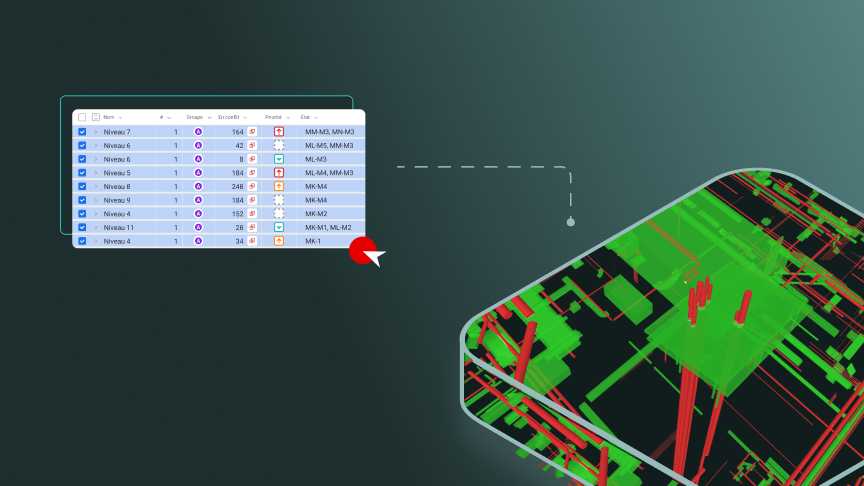
When you open Clash Automation, you see a list of all existing clash tests. The Revizto clash automation video describes the information shown for each test:
- Test name and status, which shows whether the clashes are up to date
- Total number of clashes, grouped clashes, resolved clashes, new clashes, and not reviewed clashes
- Clashes that have been synced to the issue tracker
- Default stamp, assignee, priority, and deadline
- Date created, who created the test, and when it was last run
You can add more fields using the menu icon. Filters help keep tests organized, and you can apply them using custom labels, for example by discipline or by company, depending on your workflow.
What can you do from the clash test list?
The toolbar lets you create a new clash test, check out or relinquish a test, run clash detection, sync clashes to the issue tracker, or run and sync together. Clash test settings are also available here.
For an individual test, you can check out or relinquish it, duplicate it, rename it, export or import it, archive it, view its version history, run or sync its clashes, or regroup its clashes.
How do you create a clash test?
- Make sure you have the Create clash tests right. Project members with this right can create tests in cloud and shared location projects.
- Open the Clash Automation pane from the 3D toolbar.
- Click New clash test. If the project already has tests, you may be asked whether to import settings from an existing one.
- Configure the test in the Settings pane.
- Run clash detection, or relinquish the test.
A new test is checked out for editing and visible only to you until you relinquish it. You can also create a test by duplicating and editing an existing one.
How do teams avoid overwriting each other's clash tests?
When someone checks out a clash test, it is locked for editing, and other users can open it only for viewing. Relinquish a test when you're done editing, which the Help Center recommends. If a test is stuck because of another session, you can force relinquish it, which discards the changes made in that session. You can edit a test's name, access rights, and labels without checking it out.
How do you reduce false clashes?
Revizto lets you set rules for ignoring clashes. Simple conditions include ignoring duplicates, ignoring clashes when both objects are in the same model, and ignoring room, area, zone, and space objects. You can also add conditions based on a shared property value, a shared search set, or objects in specific different search sets.
Stantec, a customer working on a hyperscale data center project in the Australia and New Zealand region, shared one practice: mark non-issues as approved to reduce clutter in the clash detection tool. Ash Carr, BIM manager and VDC lead at Stantec, shared the tip in the customer story.
How do clash results become assigned issues?
Once clashes are grouped, you sync the groups to the issue tracker. The clash group name becomes part of each issue's title, and issue automation can apply a template or conditional rules for stamp, priority, deadline, and assignee. Both steps are covered in more detail in these articles:
- How to group clashes automatically in Revizto
- How to assign clashes to the right team members automatically in Revizto
How do teams use clash automation on real projects?
According to the Stantec customer story, the team previously needed several tools for clash detection and issue reporting. Running clash detection directly in Revizto, without switching tools or converting files, was described as a significant time-saver. On the data center project, clash detection helped identify potential interferences between mechanical services and structural steel before construction.
Ready to automate your clash detection?
Want to see how clash tests, grouping, and issue automation can turn clashes into assigned issues on your own projects? Talk to the Revizto team for a walkthrough tailored to your workflow, or book a demo to see Clash Automation in action. To build your skills first, explore the Revizto Academy for training on clash detection and the rest of the Revizto workflow.