How to assign clashes to the right team members automatically in Revizto
See how Revizto fits your workflow
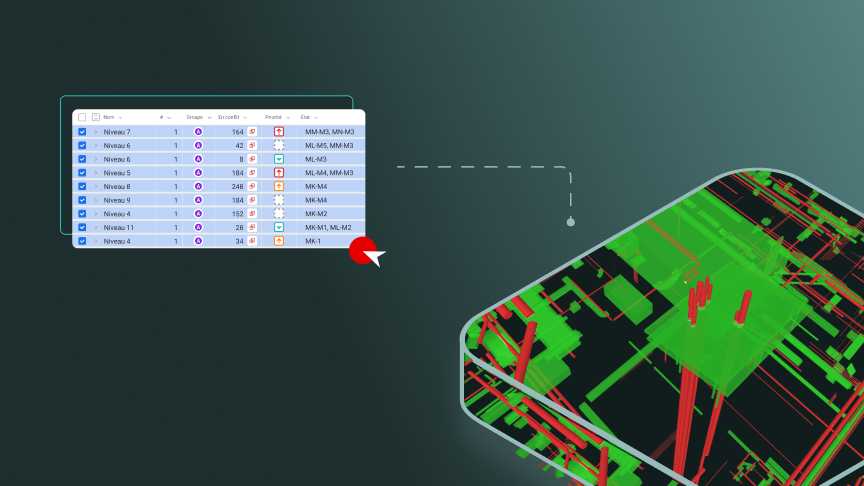
Finding clashes is one step. Getting each one to the person who can resolve it is another. Revizto's issue automation lets a clash test create issues from clash groups and fill in the stamp, priority, deadline, and assignee for you. This article explains simple and advanced issue automation, how the rules work, and how to set them up.
Quick takeaway: In the clash test's settings, use Issue automation to set a template for new issues, including stamp, type, priority, deadline, assignee, watchers, and tags. For more control, switch to advanced automation and build IF/THEN/OTHERWISE rules that create or skip issues, and assign them differently, based on search sets. Then sync the clash groups to the issue tracker.
What is issue automation?
Issue automation is the set of rules and conditions that govern which issues are created when a clash test syncs with the issue tracker. It applies to clash groups, and changes only affect new issues created from the clash test. Existing issues aren't updated.
There are two modes. The Help Center recommends simple issue automation for your first clash tests, and advanced issue automation once you're familiar with it.
How does simple issue automation work?
Simple issue automation creates one template for every issue created from the test. You don't need to fill in every field.
How does advanced issue automation work?
Advanced issue automation lets you create several issue rules for one clash test. Each rule is listed under Conditional values and follows an IF/THEN/OTHERWISE model.
- IF: a condition checked for each clash group.
- THEN: an action when the group meets the condition, either creating an issue from a template or not creating one.
- OTHERWISE: an action when the group doesn't meet the condition, with the same two options.
Conditions use search sets, and each can have two parts joined by AND or OR. The order of the rules matters. For each clash group, Revizto applies any location filters, then the first rule whose condition is met, and skips the rest. If no rule matches, the final OTHERWISE rule applies, which uses the default issue values if it creates an issue.
Your simple template becomes the default issue values in advanced mode. Switching back to simple automation removes all advanced conditions.
How do you set up a rule?
- Select the clash test and check it out for editing.
- In the Issue automation field, click Settings, then switch to advanced automation.
- Under Conditional values, click Add condition.
- In the IF field, choose a condition type and select one or more shared search sets. Optionally add a second part joined by AND or OR.
- In the THEN field, choose to create an issue and fill in the fields you want, or choose not to create an issue.
- Add more conditions if needed, then set the final OTHERWISE action.
- Click OK, relinquish the test, and sync the clash groups to the issue tracker.
How do location filters work?
Location filters limit which issues are created by specific locations in the project. You can filter by level, room, space, zone, or area, and choose Include or Exclude. You also choose how many clashes in a group must match the location: at least one, or all of them. Locations must be set up in the project, and location filters can be used on their own or with conditional values.
What happens to clash groups that haven't been reviewed?
The setting Sync clash groups with the following statuses controls whether groups with a "Not reviewed" status are synced. By default, Revizto asks each time before a sync. You can instead sync both reviewed and not reviewed groups. You can also add the clash group number to the issue name.
Can you edit several tests at once?
Yes. With enough rights, you can edit access rights, labels, and simple issue automation fields for multiple tests at once. To edit issue automation, check out the tests first and relinquish them when you're done.
How are teams using this on projects?
On a hyperscale data center project in the Australia and New Zealand region, Stantec used Revizto for clash detection and coordination between disciplines.
“We could run clash detection, perform visual reviews, assign issues, and use stamps to flag problematic areas. This meant our coordination meetings were highly productive, and issues were resolved before they became costly errors on site.”
Ash Carr, BIM manager and VDC lead at Stantec

Ready to put the right issue in the right hands?
Want to see how issue automation can assign clashes to the right people without manual triage on your own projects? Talk to the Revizto team for a walkthrough tailored to your workflow, or book a demo to see Clash Automation in action. To learn how to build your own assignment rules, explore the Revizto Academy for hands-on training on clash detection and issue automation.