How to set up VR for Revizto with Meta Quest or HTC Vive
See how Revizto fits your workflow
Walking through a model in VR starts with a short setup: a supported headset, a computer that meets the requirements, and the right Revizto viewer. This article covers which headsets Revizto supports, what your computer needs, how to connect a Meta Quest 2, and what to check if the headset isn't recognized.
Short answer: Connect a supported headset to your computer, then run the matching viewer that Revizto adds to your desktop: Revizto Oculus Viewer for Meta and Oculus headsets, or Revizto Vive Viewer for HTC Vive headsets.
Which VR headsets work with Revizto?
Revizto's Help Center lists the supported headsets in two groups, based on the software each one needs.
What does your computer need?
The Help Center gives these system requirements for VR:
- Graphics card: a VR-ready card is recommended for Meta/Oculus or Vive, depending on your device.
- Memory: 8 GB of RAM at minimum, 16 GB or more recommended.
- Operating system: Windows 11.
- Displays: keep only one monitor turned on. Multiple displays are currently not supported.
How do you connect a Meta Quest 2 to Revizto?
In the setup webinar, Enrico Ferraro, Implementation Service Manager at Revizto, walks through a Meta Quest 2. You can connect the headset to your computer in one of two ways.
- Install the drivers and software your headset needs, and set up a Meta account.
- Connect the headset to your computer by cable or Air Link.
- If you have more than one type of headset, such as HTC and Oculus, open the Oculus application's general settings and set Meta Quest as the default OpenXR runtime.
- Check that your headset and controllers appear as connected in the application. The devices screen also shows battery charge.
- On your computer, run the Revizto Oculus Viewer. For HTC Vive headsets, run the Revizto Vive Viewer instead.
Both viewer icons appear on your desktop when you install Revizto. Make sure the headset is connected and turned on before you run the viewer.
What if the headset isn't recognized by Revizto?
If a Meta headset doesn't work with Revizto, the Help Center says the headset may not be recognizing Revizto as an input source. The fix:
- Open the Oculus application on your computer.
- Go to Settings > General and turn on the Unknown sources toggle.
- Connect your VR headset to your computer with a cable.
- Turn on the headset and, if prompted, follow the instructions to set up boundaries in VR.
- Enable Oculus Link with your computer.
- On your computer, run the Revizto Oculus Viewer.
How much space and equipment does a VR review need?
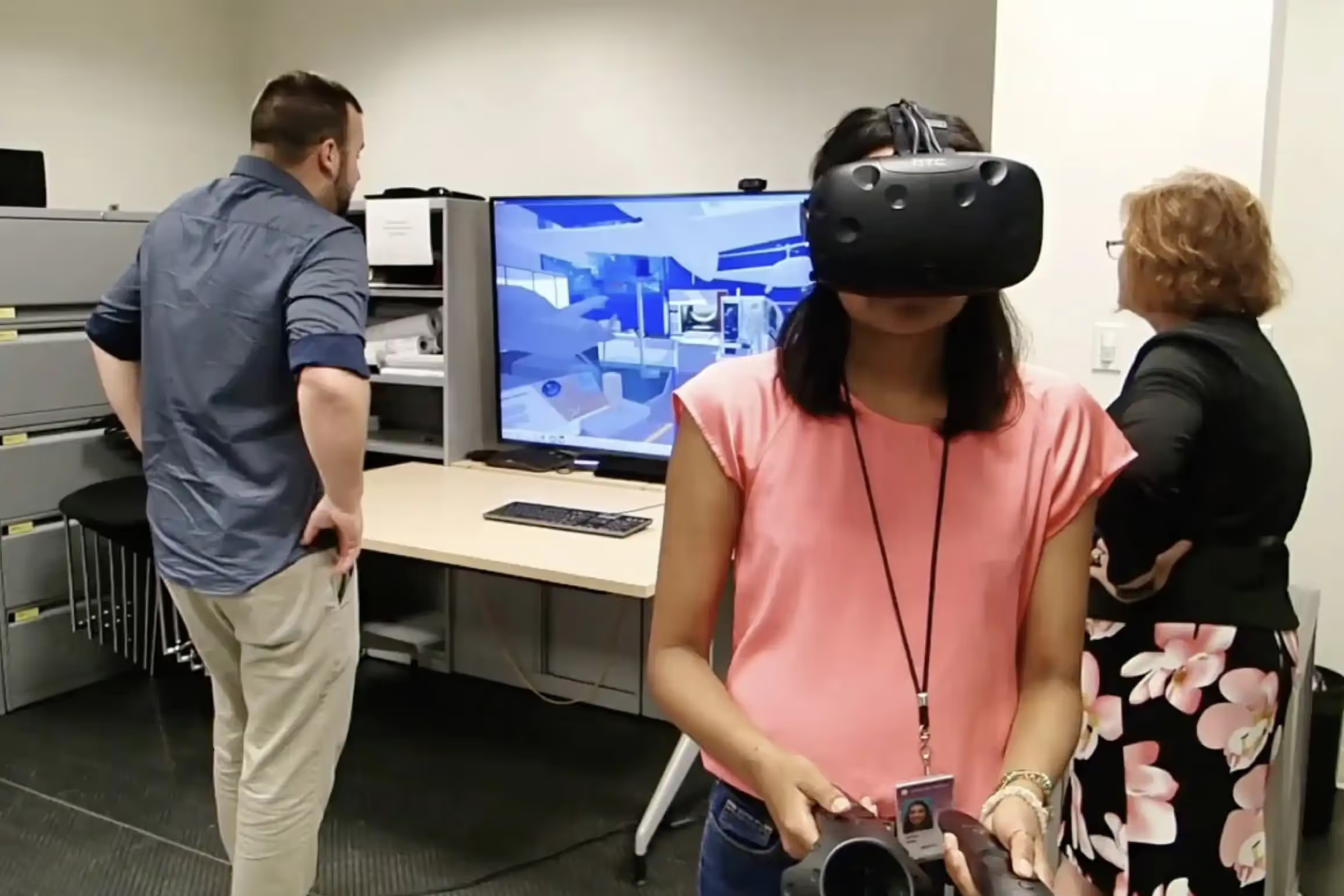
Revizto's documentation lists the computer and headset requirements above and doesn't set a room size. As one example, the Smithsonian Institution ran immersive design reviews with Revizto and an HTC Vive from a laptop, turning a 16 by 16-foot area into a review space, and took the setup to different locations.
“Being able to immerse people with this portable type of software and hardware allows you to avoid travel costs. We were able to immerse Panamanian researchers in spaces we had designed for natural history. Instead of bringing ten scientists from Panama to the United States to visit the actual space, we brought the space to them and had them walk through it.”
Michael J. Carrancho, Deputy Director at the Smithsonian Institution
Headset connected? Here’s what’s next
Already set up? Next, learn how to move around and check objects: How to navigate a model in VR with Revizto. New to Revizto? Book a demo to see VR on your own models.