How to filter and validate model properties with search sets in Revizto
See how Revizto fits your workflow
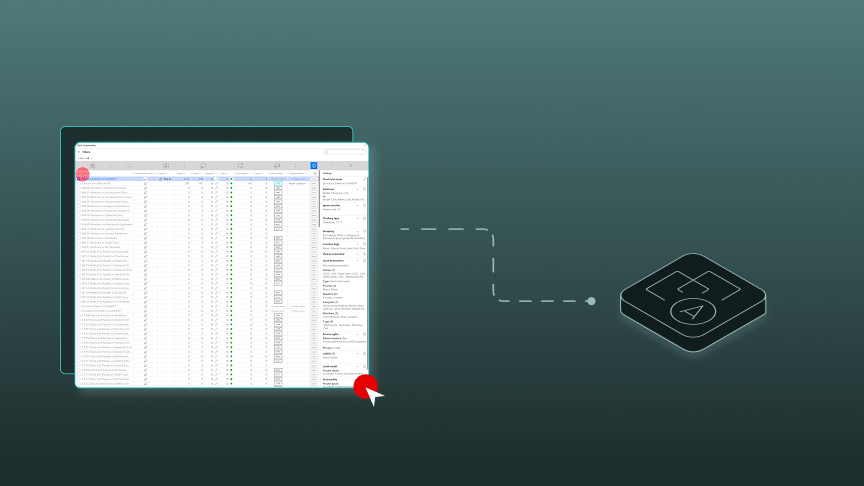
Before you can automate a property check, you need to define what a correct value looks like. This article covers the foundation shown in a Revizto webinar by Moritz Mombour, Associate Partner at Drees & Sommer: filtering elements in stages, saving valid and invalid values as search sets, showing the result in color, and sending the problem elements to the issue tracker.
Quick takeaway: Filter the model in stages to the elements you want to check, save a search set for each valid value, combine them with OR, and invert the combination to find invalid elements. Then show valid and invalid in different colors with an appearance template and send the invalid elements to the issue tracker.
What is a search set?
A search set saves your search criteria so you can repeat the search at any time. Any Revizto user can create one, and the Help Center says users with the "Manage shared search sets" right can share folders of search sets. Clash tests use shared search sets for their selections, so sharing matters if you plan to automate the check later.
How do you filter to the right elements?
The presenter works with Revit data, where the element type follows a naming convention that identifies the work package, so the filters are staged.
- Filter by element type. A first filter selects shell elements by the code in the type name. In the training project, this selects 167 elements, which you can isolate.
- Filter by material. A second filter, applied within the first search set, keeps elements whose material contains concrete. This leaves 145 elements.
- Filter by the property you want to check. Each valid concrete grade becomes its own search set, based on the parameter that holds the value.
Two options matter. The within search set option searches inside an existing result, which is what makes staged filtering possible. The match case option controls whether capitalization matters, and the presenter turns it off for the material filter. He uses "contains" instead of an exact match so a stray space before or after a value doesn't count as an error.
How do you find valid and invalid values?
- Create a search set for each valid value of the parameter.
- Combine the valid-value sets with OR. In the example, 117 of the 145 concrete elements match.
- Create the inverse of that combined set, using NOT, to find concrete elements without a valid value. In the example, that is 28 elements.
The same pattern works for any property. You define the valid values for a prefiltered group of elements, and the inverse gives you the errors. These counts are from a training model and are illustrative.
How do you show valid and invalid elements in color?
Use an appearance template with the valid-values set in green and the inverse set in red, preceded by a filter that shows only the concrete elements. To avoid reapplying the template each time, save it with a viewpoint. The presenter notes that an appearance template assigned to a viewpoint keeps working when the viewpoint is updated, so a double-click returns you to the same view.
How do you review the values in a table?
Revizto's properties pane lets you add properties to favorites, so they show when you select an object in 3D, and create sets of favorites. In the webinar, the favorites also become the column headings in the Selection Inspector, the table view of the selected elements. The table updates live as you change the selection, so you can see the actual value for each element, filter further, and select the problem elements.
How do you send problem elements to the issue tracker?
With the invalid elements selected, you can add a stamp to all of them together, or add individual stamps, and assign tasks to track them. The presenter notes that this is a manual approach. You would need to recheck and update the result yourself, but it already supports a level of information (LOI) check, with items tracked until the target quality is reached. For corrections at the source, Switchback jumps to the elements in Revit. For repeated checks, the next step is automating it with clash automation, covered in How to automate attribute checks in Revizto using clash automation.
How should you organize search sets?
- Keep the single checks in one folder and the combined filters you use later at the top.
- Prefix check-related sets with an underscore so they sort to the top.
- Keep a backup folder for sets you no longer use and don't delete them, because they can be referenced in other filters.
Ready to put search sets to work on your own models?
Search sets are the foundation of every automated property check in Revizto. Once you’ve defined what a valid value looks like, you can show the results in color, send the problem elements to the issue tracker, and, when the check needs to repeat, hand it over to Clash Automation. Talk to the Revizto team about setting up property checks that fit your project’s naming conventions and information requirements. Book a demo to see search sets and Clash Automation working together.