See what’s hidden behind walls, floors, and ceilings
See how Revizto fits your workflow
Cutting into a wall or slab without knowing what's behind it risks costly rework, and worse, hitting a live pipe or conduit nobody flagged. Shifting from paper drawings to a calibrated AR overlay on a phone or tablet exposes in-wall systems, foundations, and MEP runs before anyone picks up a tool. On-site visibility in the moment means a field team can verify placement as they work, instead of finding out after the wall is already open.
What Revizto AR actually does
Revizto AR overlays a digital model onto the real-world jobsite through a mobile device camera. It's a feature of the Revizto Site app, and once a model is calibrated to a physical location, a field team can walk through the space with the model aligned to what they're standing in front of. Common uses include checking in-wall visibility, confirming foundation and underground conditions, and identifying MEP systems before work starts.
It's worth being direct about what AR is and isn't for. Accuracy depends on how well the model is aligned, and AR is best treated as a visual aid rather than a precision tool. It works alongside standard verification practices, not instead of them, particularly for anything safety-critical.
Getting the model to match the room
AR calibration has three options, and which one to use depends on how much accuracy the moment calls for:
- Calibrate by corner is the most accurate method. It needs a corner where three surfaces meet, floor and ceiling corners work well, and after scanning those surfaces on-site, the same three surfaces get selected in the model to lock the alignment.
- Calibrate by floor aligns the model's floor to the real one and opens the Adjust tool automatically for finer positioning.
- Open without calibration skips automatic alignment entirely, useful for a quick look at the model or for reviewing it away from site.
A few things make calibration hold up better: decent lighting, calibrating from inside the room being reviewed, and recalibrating on entering a new room rather than trusting the last calibration to carry over. For corner calibration specifically, a surface roughly 3 ft by 3 ft (1 m by 1 m) gives the most reliable result, and in unfinished spaces, a couple of temporary drywall or ceiling tile pieces can create that corner where one doesn't exist yet.
Built for the field, not just a walkthrough
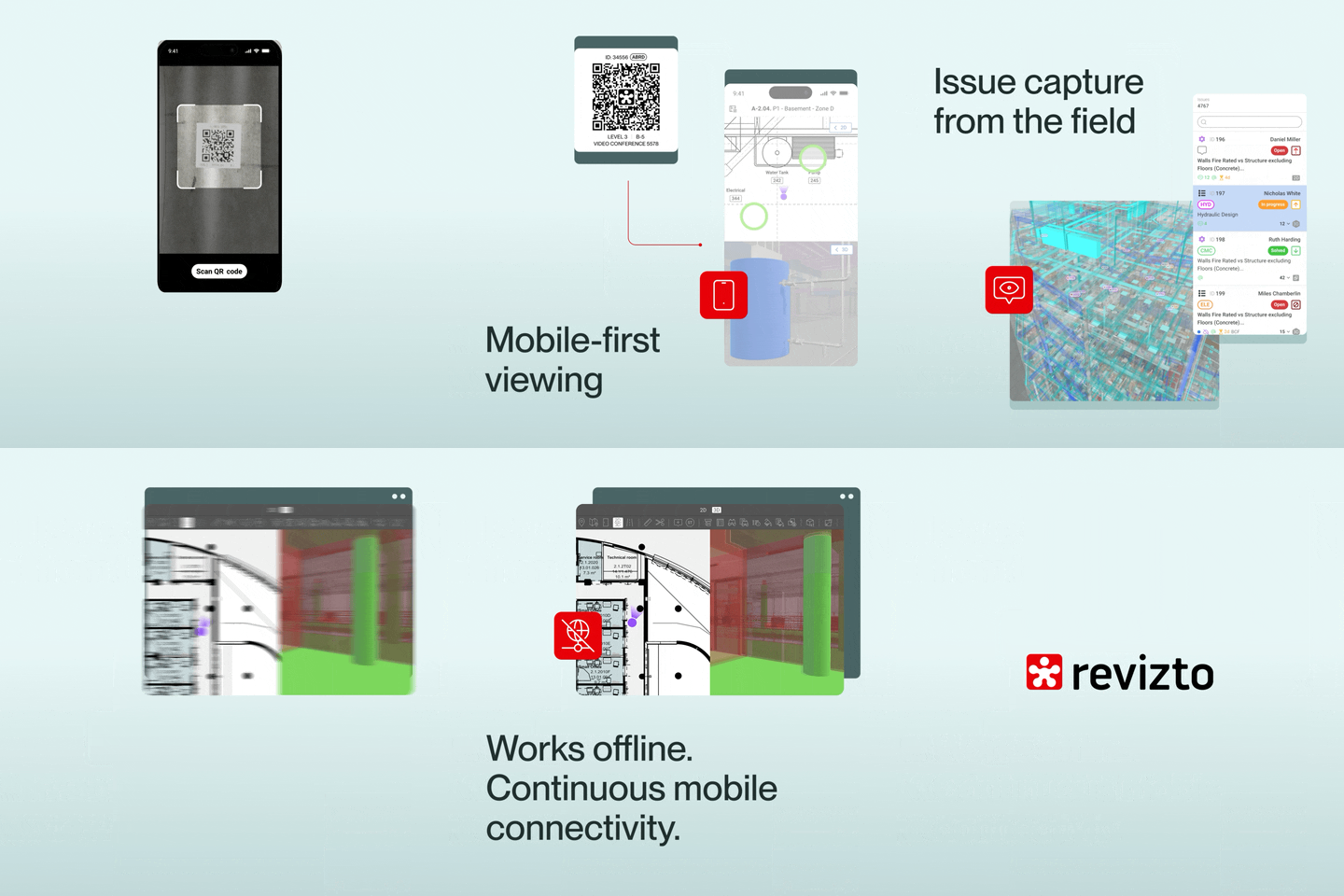
Once a project is cached on a device, Revizto AR works without an internet connection, which matters on sites where coverage isn't guaranteed. The tools available inside AR mirror the desktop workflow rather than offering a stripped-down version of it: a ruler for quick measurements (taken from the model, not the physical space), the ability to log a new issue or stamp directly from the AR view, and controls to show or hide issue pins, adjust model transparency, or toggle grids.
That matters because it means a discrepancy found in AR becomes a tracked issue immediately, in the same issue tracker used everywhere else in Revizto, rather than a note that has to be re-entered back at a desk.
Setting AR up for better performance
A few setup choices, made ahead of time, change how usable AR is on site:
- Load only what's needed
An AR preset limiting which models load reduces both download size and processing load. - Build AR-specific appearance templates
Templates that highlight only the systems relevant to a given trade, or hide ceilings and equipment clearances to expose MEP runs, cut down on visual clutter fast. - Favor solid textures over transparency
Transparent objects cost more to render, so minimizing them helps performance, especially on older devices. - Prepare section boxes and viewpoints in advance
Setting these up on desktop before heading to site means less time spent navigating once there.
Devices with LiDAR sensors calibrate more accurately, though most recent Android devices (Android 7.0 or later, with Google ARCore support) and Apple devices (iOS or iPadOS 11 or later) can run AR without one.
See it in action
Revizto AR sits inside the Revizto Site app, and the clearest way to see how mobile navigation and issue tracking actually work in the field is to watch it: the Revizto Site app walkthrough covers 3D and 2D navigation, split-view, and creating and tracking issues directly from a mobile device.